Administrative information
Manage your business's administrative information
Business
Contact person
Billing address
Account
Manage your account information
Password
Site language
Choose the language(s) in which your customers will see your website.
Email at your own domain name
Get email at your own name
Choose a domain to get email at your own name (e.g. info@karinebedardmortgagebroker.com, if that domain is available).
Your domain
Manage your website domain name
Choose your free domain
Your plan includes a free domain name. Search and select yours!
Guide
Step by step, with pictures, for every part of your management area. A question or a change to make?
Contact us
A question, a problem or a change to make? Write to us.
Contact us
For any support or quote request, use this form. We reply by email.
Modules
Your site modules. Click a tile to open it.
My account
Your business information, your access and your plan.
Domain and email
Your domain name and the email that comes with it.
Help
The guide to your management area, or a message to our team.
Opening hours
Your hours appear everywhere on your site (hours page, footer, contact), with the “Open / Closed” status based on your business's local time.
How does it work?
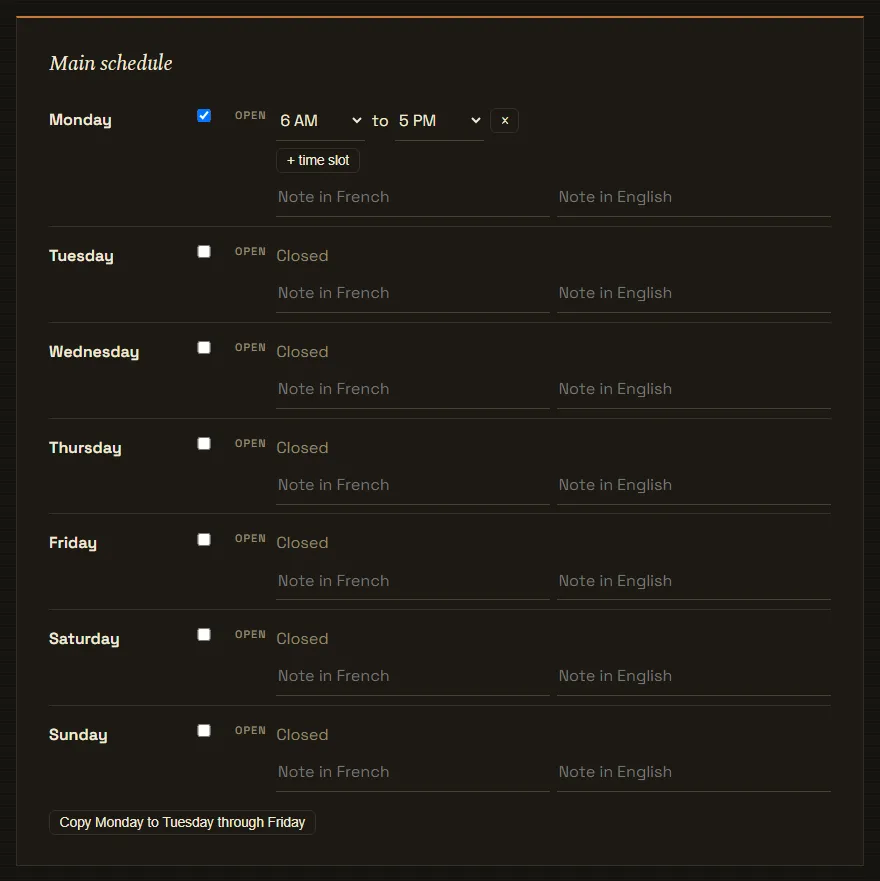
Main schedule — Your usual hours. They appear everywhere on your site: hours page, footer, contact page. This schedule decides whether your site shows “Open” or “Closed”.
Extra schedule — A service offered outside your hours, for example 24-hour emergencies or a prepared-meals counter. It appears below your main schedule, with its name. It does not change the status: a plumber closed on Sunday shows “Closed”, even if their emergency line is open.
Seasonal schedule — Different hours during part of the year, for example summer. During its period, it automatically replaces your main schedule everywhere, including the status: you have nothing to do on the day it changes. Outside its period, it appears below your main schedule with its dates, so your customers know in advance.
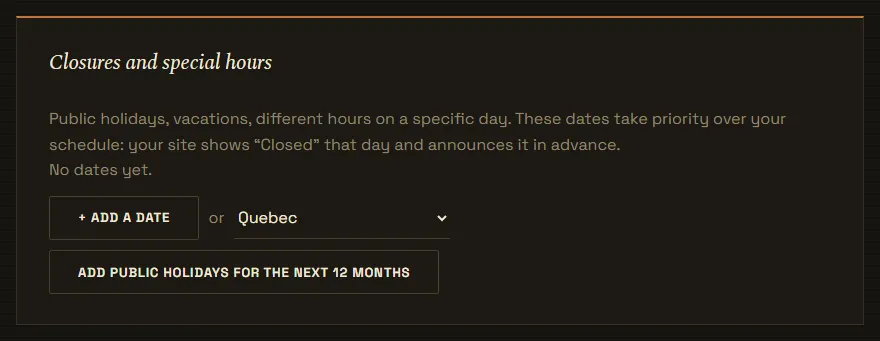
Closures and special hours — A specific date: public holiday, vacation, shorter hours on Christmas Eve. It takes priority over all your schedules that day, and your site announces it during the 30 days before (“Closed December 25 (Christmas)”). The “Add public holidays” button fills in the next 12 months for your country; check “Every year” for a date that always falls on the same day.
Note for the day — A day with no hours but with a note (e.g. “By appointment”) shows the note instead of hours; your site then shows “Closed” that day.
General note — A detail shown below all your hours, for example “Closed on public holidays”.
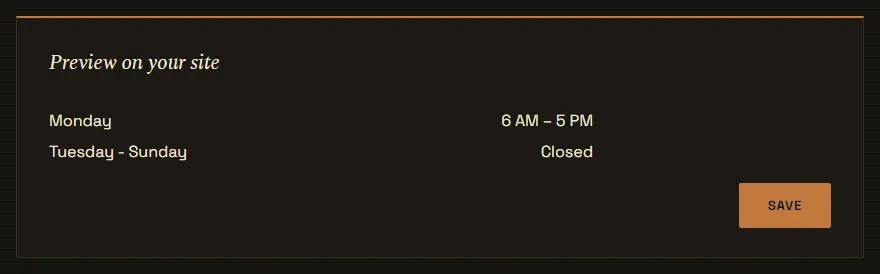
The preview at the bottom of this page shows exactly what your site will display.
Settings
Closures and special hours
Public holidays, vacations, different hours on a specific day. These dates take priority over your schedule: your site shows “Closed” that day and announces it in advance.
General note (optional)
E.g.: Closed on public holidays.Preview on your site
Getting started
The menu, the tiles and the buttons at the bottom.
-
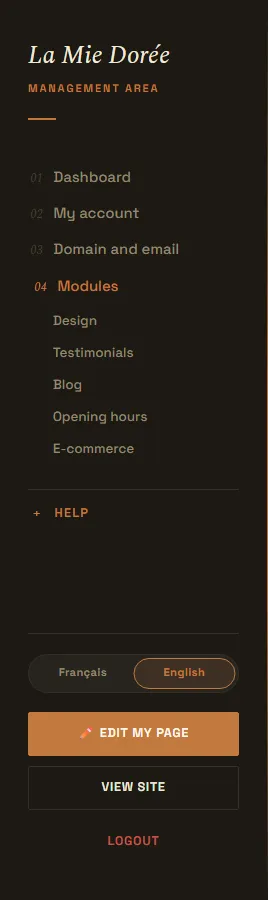
The Menu
The left menu has six entries: Dashboard, My account, Domain and email, Module, Your review and Help. When you open a page, its neighbouring pages appear indented under its entry.
-
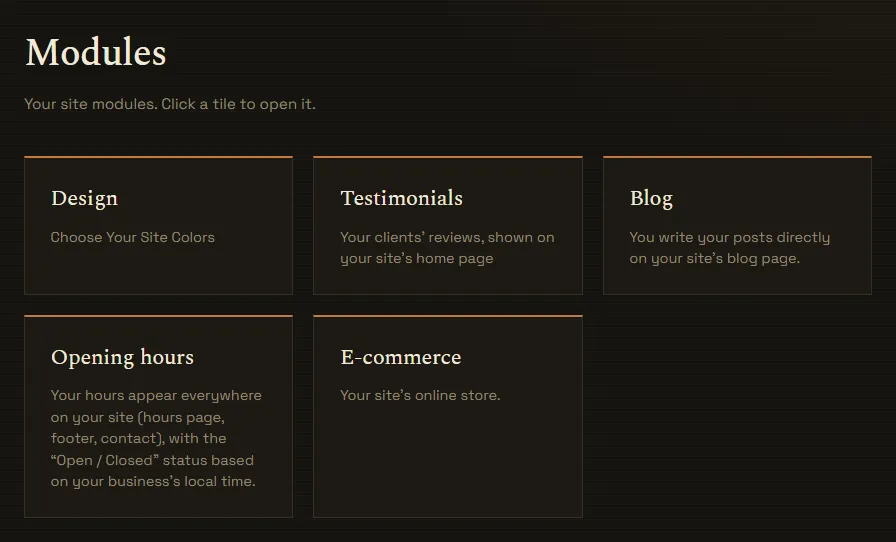
The tiles
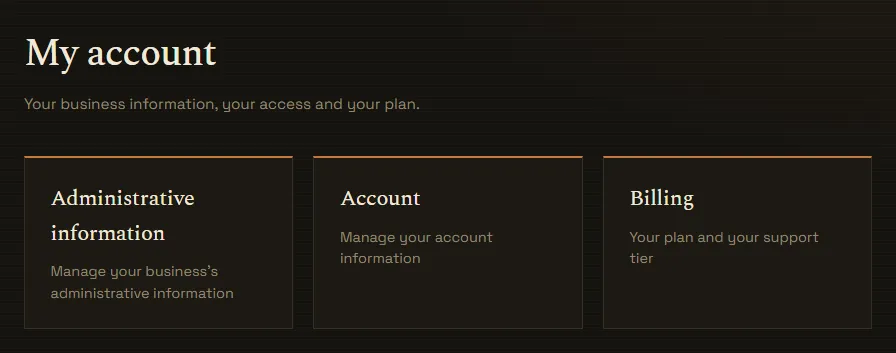
My account, Domain and email and Modules open a page of tiles. Click a tile to open its page. The “←” link at the top of each page takes you back to the tiles.
-
The buttons at the bottom
- “Edit my page” opens your site in edit mode: you change your texts and photos right there.
- “View site” opens your site the way your visitors see it.
- If your site is bilingual, the Français / English selector chooses the language of the texts you edit.
-
Saving
Some settings are saved automatically (colors, for example). The others have a “Save” button: a message at the bottom of the screen confirms it is done.
Edit my site
Change a text or a photo, add an item, move a section.
-
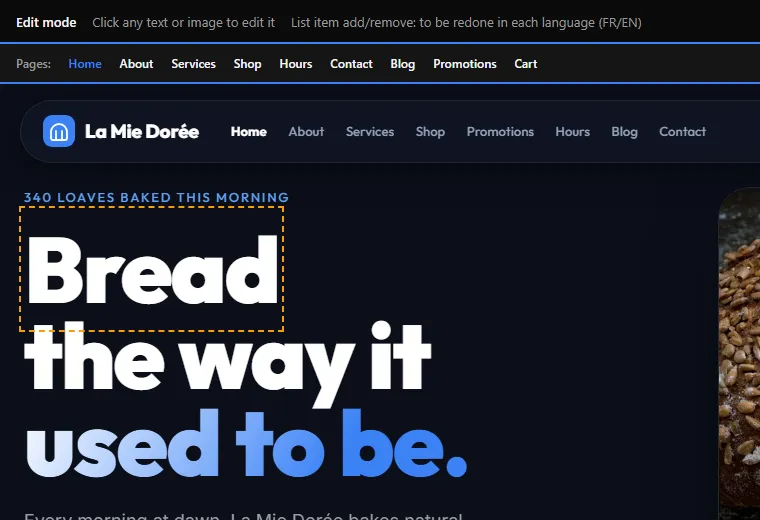
Open edit mode
Click “Edit my page” at the bottom of the menu. Your site opens with a bar at the top. The “Pages:” line takes you to each page of your site, still in edit mode.

-
Change a text
Click a text, type, then click elsewhere: it is saved. The Enter key also saves (Ctrl + Enter in a long text) and Esc cancels.
In some texts, a small bar lets you make a word bold or italic, or add a link.
-
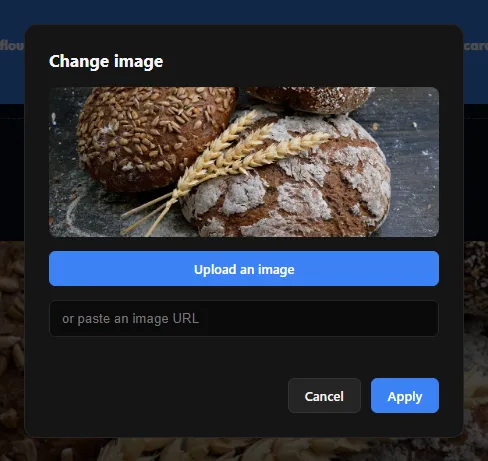
Change a photo
Click a photo. A window opens: “Upload an image” to pick a photo from your computer or your phone, or paste an image address. Click “Apply”.
“Restore default photo” brings back the original photo.
-
Lists: add, move, delete
Your services, your steps, your frequently asked questions, etc. are lists. Move the mouse over an item:
- ⠿ (top left): hold and drag to move it.
- ✕ (top right): delete it.
- “+ Add” under the list: add an item, which you then fill in like any text.

Bilingual site: adding or deleting a list item is done in each language. Switch to French with the language selector and do it again.
-
Add or remove a section
The “+” button between two sections shows the sections you can add at that spot. A section already on the page is no longer offered; remove it to put it somewhere else.
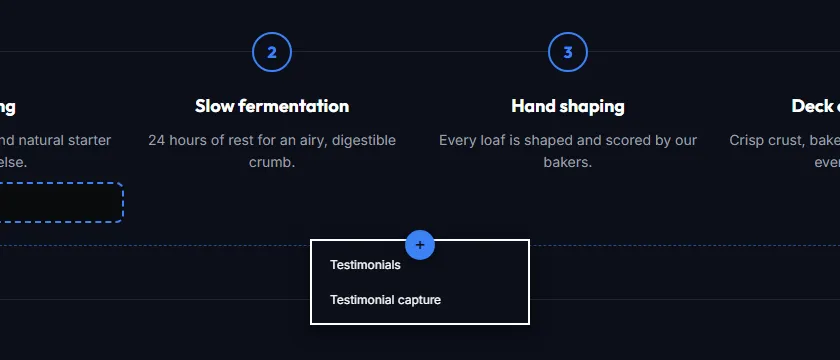
“Reset layout” puts the page sections back in their original order. Your texts and photos do not change.
-
Short name (Mobile)
On a phone, a long business name takes too much room at the top of the screen. This button lets you choose a shorter name for phones only.
-
Finish
Click “Done”: you go back to your management area. Everything you changed is already online.
My account
Your information, your password, the site language and your plan.
-
Open My account
Click “My account” in the menu, then a tile.
-
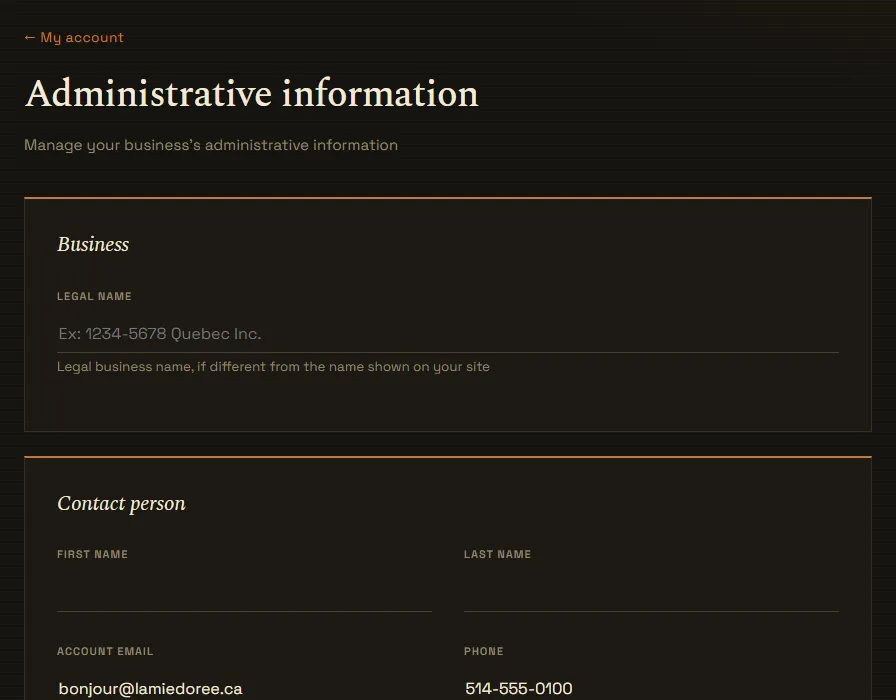
Administrative information
Your business's legal name, the contact person and the billing address. This information is used for your invoices; it is not shown on your site.
The promised response time is shown to your visitors after they send the contact form. Click “Save”.
-
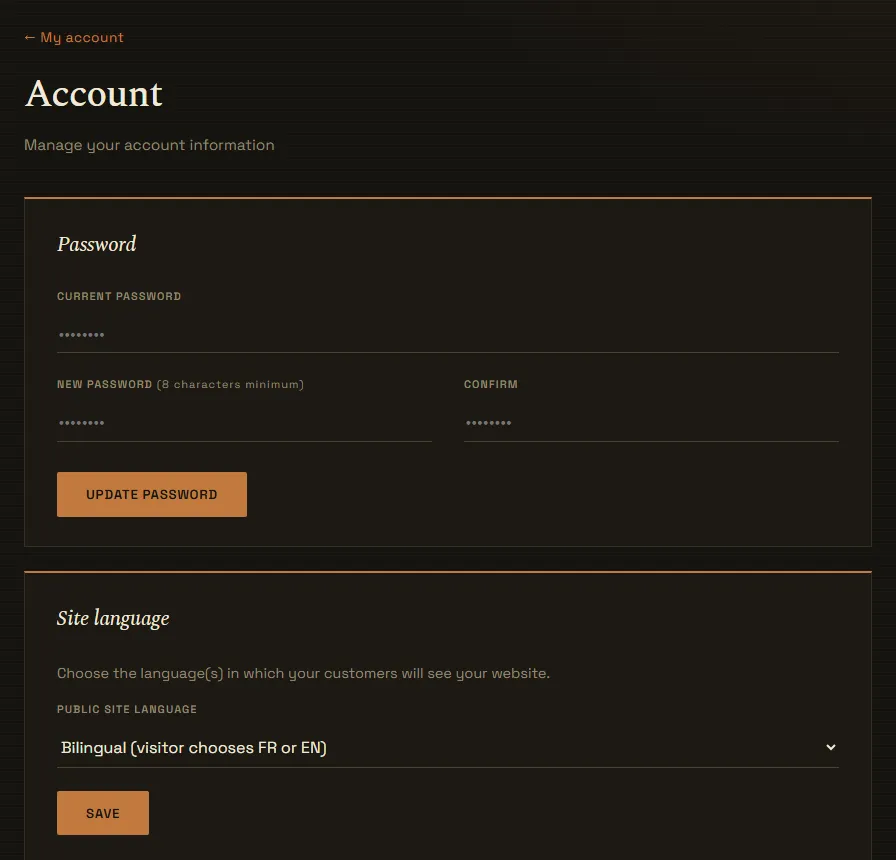
Password and site language
In “Account”: change your password, and choose your site's language: French, English or bilingual. A bilingual site shows the language selector to your visitors.
Domain
Choose your domain name or connect the one you already have.
-
Open Domain
Click “Domain and email” in the menu, then the “Domain” tile.
-
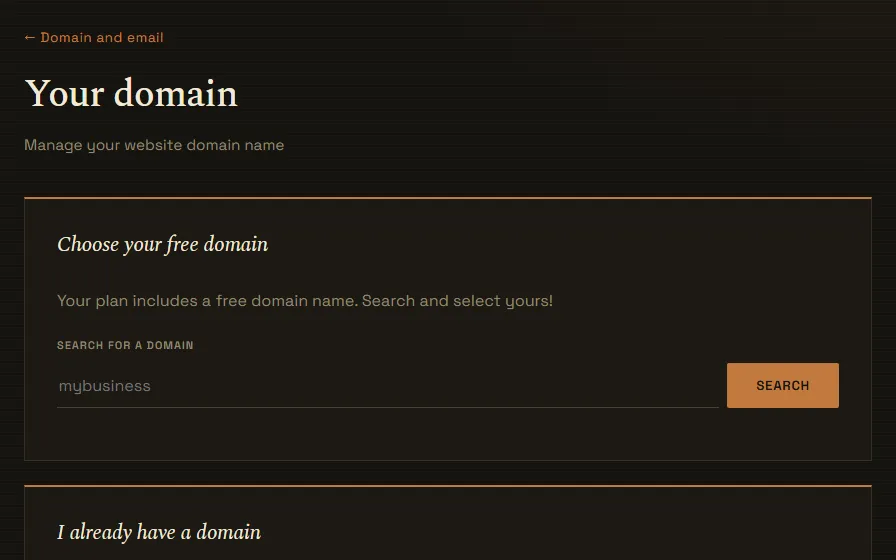
Choose your domain
Type the name you want (without www or .com) and click “Search”. Click “Select” next to an available domain, then “Save this domain”.
If your plan includes a domain, it is free. Otherwise, its yearly price is shown before you buy.
-
I already have a domain
Type your domain and click “Connect”. We show the settings to copy at your domain provider. Activation happens on its own once the settings are in place (a few hours).
-
Temporary access
Your site always keeps its temporary address, even after your domain is activated.
Your mailbox at your domain name.
-
Enable
"Activate my email" sets up your info@ mailbox at your domain name. It's ready within a few hours at most.
You first need an active domain name: see the “Domain” guide.

-
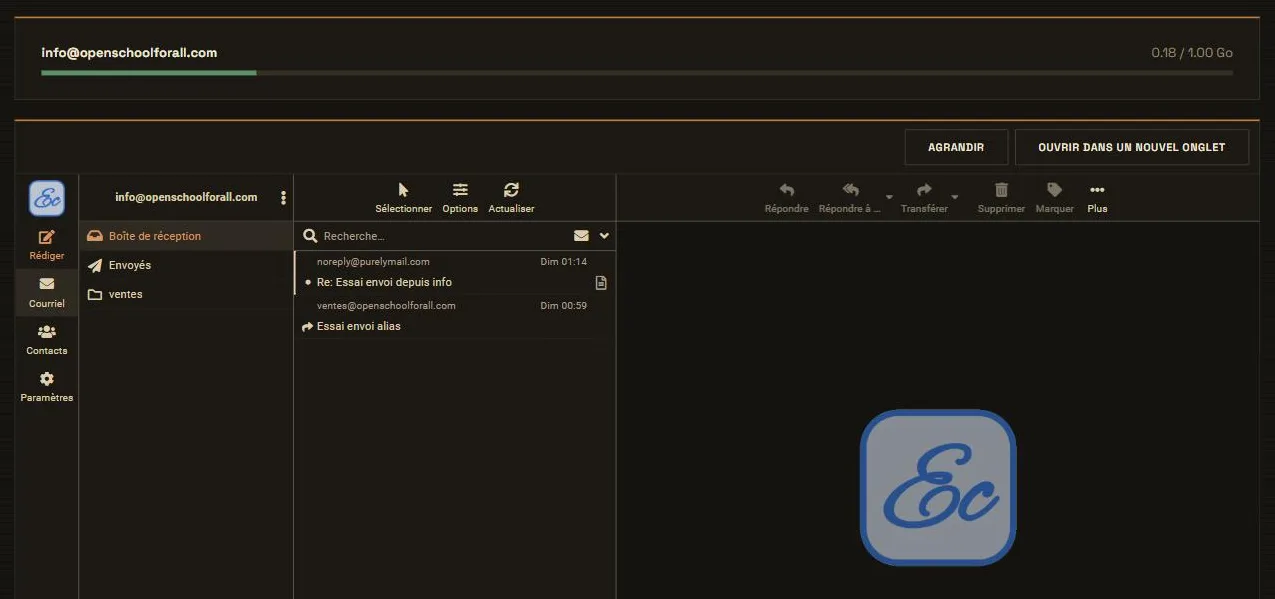
Read and send
Your mailbox opens right here, already signed in. "Compose" to write; "Enlarge" makes it fill the whole window (Esc to go back).
-
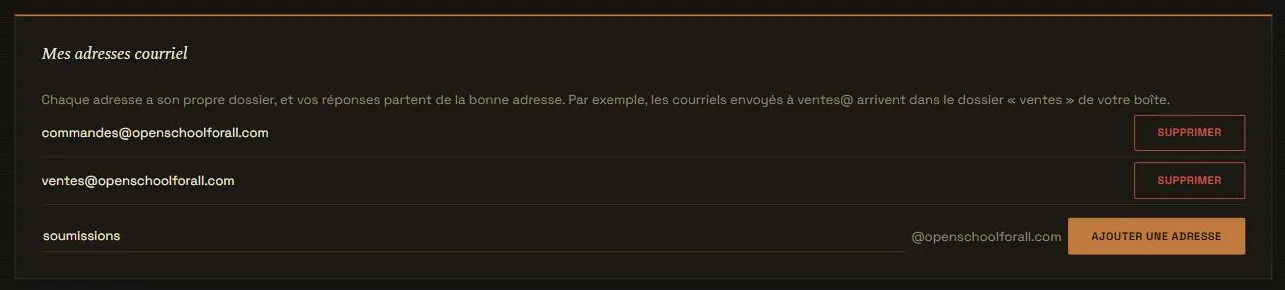
Add addresses
sales@, orders@… as many as you want, at no cost. Each one has its own folder in your mailbox, and your replies are sent from the right address.
-
Your storage
This storage is shared by all your addresses. The gauge at the top of the tab shows where you stand.

At 80%: a notice here. At 100%: sending is blocked, receiving continues. After 7 days without cleanup (or right away at twice your storage): receiving is suspended. Below 95%: everything comes back on its own.
To free up space, delete old messages and empty the trash. Our notices always go to your account address, never to an address on your domain.
-
On a phone
The mailbox opens full screen; "← Back" brings you back here.
-
Password
None to remember: your mailbox only opens from here, and you're signed in automatically.
Testimonials
Receive, approve and display your customers' reviews.
-
Open Testimonials
Click “Modules” in the menu, then the “Testimonials” tile.
-
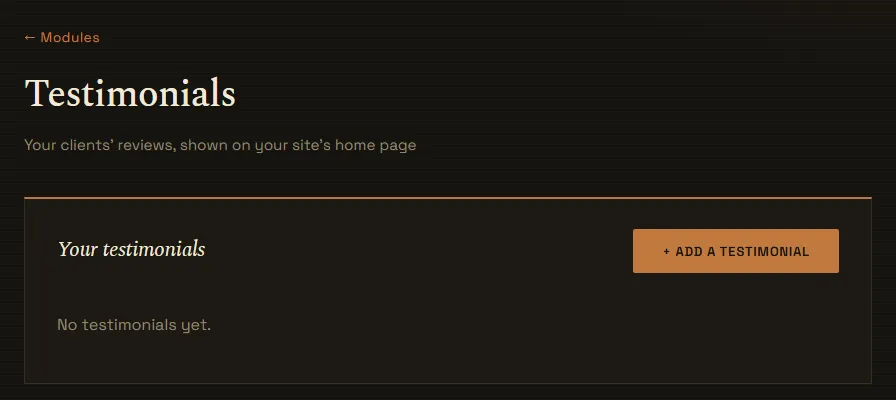
Your testimonials
Reviews left by your customers on your site arrive here. For each one: “Approve” publishes it, “Hide” removes it from the site without erasing it, “Edit” and “Delete”.
“+ Add a testimonial”: enter a review you received another way (email, Google, etc.) yourself: the quote, the customer's name, the rating and a photo if you want.
-
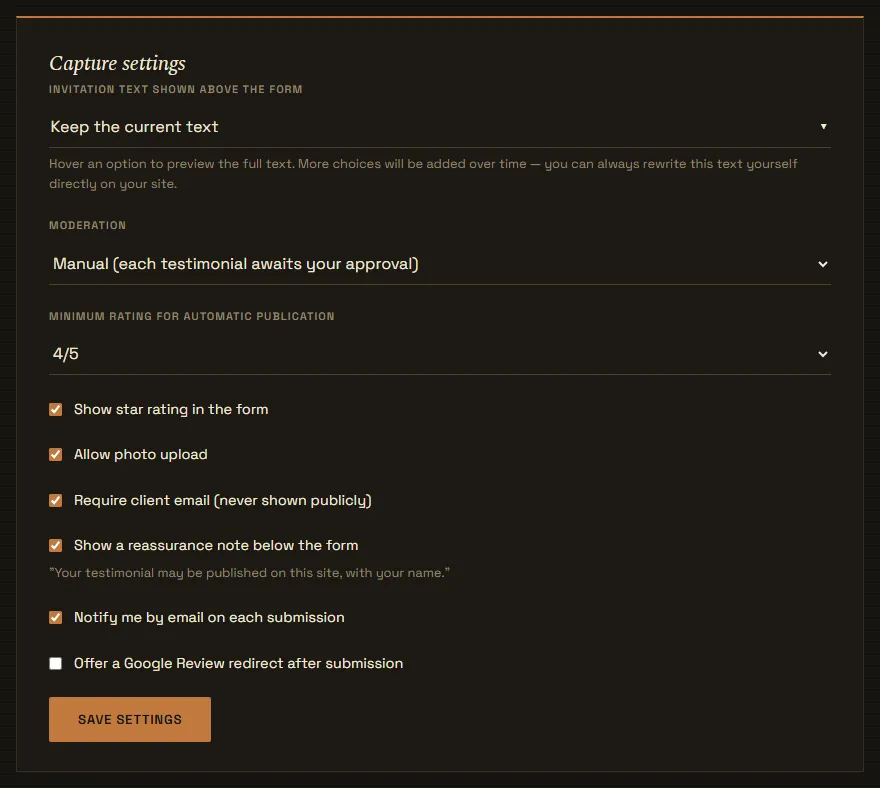
Capture settings
- Manual moderation: each testimonial waits for your approval. Automatic: it is published on its own if it reaches the minimum rating.
- Check what the form asks for (star rating, photo, email) and whether you want an email notice for each testimonial.
- You can also invite satisfied customers to leave their review on your Google listing.
Click “Save settings”.
-
On your site
“Public display” chooses how many testimonials are shown at first. To add or remove the testimonials section or the form on a page, use the “+” button in edit mode (“Edit my site” guide).
Opening hours
Your schedule, your closures and public holidays.
-
Open Opening hours
Click “Modules” in the menu, then the “Opening hours” tile. Your hours are changed only here: they then update everywhere on your site, in French and in English.
-
Settings
The time zone is used to show “Open” or “Closed” based on the time where you are. The format chooses between 17:00 and 5 PM (automatic: based on the page language).
-
Main schedule
- Check “Open” for each day you are open, then choose the opening and closing time.
- “+ time slot” adds a second time slot on the same day (for example, closed at lunch).
- The note for the day (e.g. “By appointment”) is shown instead of the hours.
- “Copy Monday to Tuesday through Friday” fills in the week in one click.
-
Extra schedule and seasonal schedule
“Extra schedule”: a service outside your hours, for example emergencies. “Seasonal schedule”: different hours during a period, for example summer; it replaces your main schedule during that period.
-
Closures and public holidays
“Add a date” for a closed day, holidays or reduced hours. Or choose your region and click “Add public holidays for the next 12 months”. These dates take priority over your schedule and your site announces them in advance.
-
Check and save
The preview shows exactly what your site will display. Click “Save”.
How to contact us
Ask for help or a quote for a change.
-
Open the form
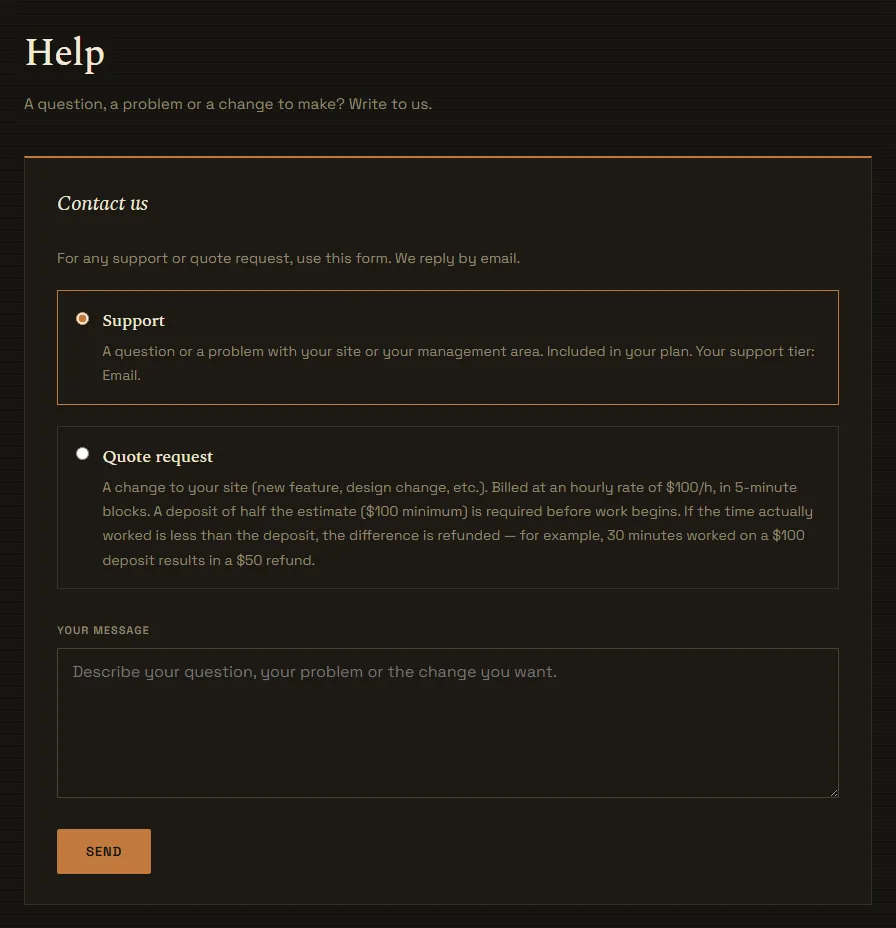
Click “Help” in the menu, then “Contact us”.
-
Support or quote
- “Support”: a question or a problem with your site or your management area. It is included in your plan.
- “Quote request”: a change to your site (new feature, design change, etc.). We send you an estimate before we start.
-
Send
Describe your request and click “Send”. We reply by email, at your account's address.
Testimonials
Your clients' reviews, shown on your site's home page
Your testimonials
Capture settings
Hover an option to preview the full text. More choices will be added over time — you can always rewrite this text yourself directly on your site.
"Your testimonial may be published on this site, with your name."